Conversation-aware selfies
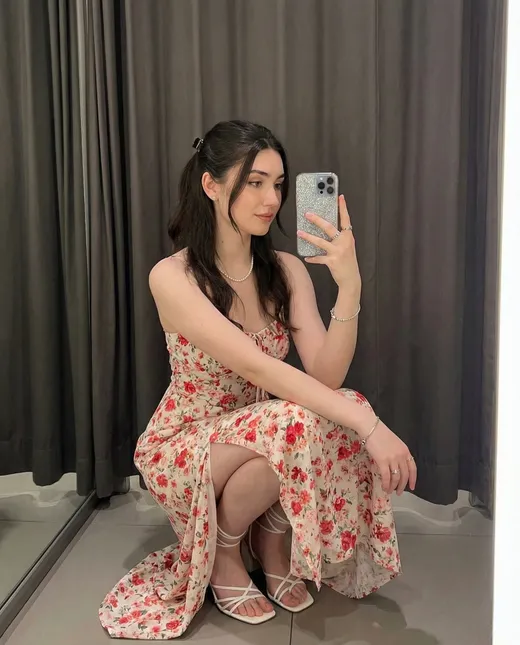
Request an image of what your Nomi is wearing and doing in the current conversation.
NOMI AI IMAGE GENERATION
Turn conversation into contextual selfies, direct an imaginative scene with Nomi Art, or animate an album image—while V5 anchors help keep your companion recognizable.
THREE WAYS TO VISUALIZE A MOMENT
Nomi AI image generation stays connected to the same companion identity while giving each kind of visual a different job.
Request an image of what your Nomi is wearing and doing in the current conversation.
Use natural-language instructions for a more deliberate scene, composition or visual style.
Animate an eligible selfie, art image or group image with a short motion prompt.
Use selfies when you want the current chat to shape what your Nomi is wearing and doing. Use Nomi Art when you want to direct the image with a dedicated prompt. Use image-to-video when an album image already looks right and you want to add a short movement. V5 appearance anchors help preserve the same visual identity across these modes.
Nomi connects image creation to an ongoing companion rather than treating every visual as an unrelated prompt. The current conversation supplies situational context for selfies. A selected appearance anchor supplies a durable visual reference. Nomi Art adds more deliberate control over style and composition, while eligible album images can become short videos.
That division matters. You do not need to write a separate prompt merely to see the moment your conversation is already describing. When you do have a specific composition in mind, the art workflow gives you a clearer place to describe it. The finished selfies, art and videos remain in the image album associated with your Nomi.
The current V5 image system uses anchors instead of the earlier base-image model. An anchor is a detailed visual reference for face, body, overall likeness and default style. New and existing Nomis receive three stock anchors that let you compare different balances of realism, likeness and anime presentation before creating anything custom.
Anchor Fidelity controls how strongly the result follows the anchor. A higher setting favors a stable likeness and the anchor's default style; a lower setting gives the image prompt more room to change appearance and presentation. Anchor Appearance Traits can reinforce details such as hair, eyes, body type or other recurring features. Appearance Tendencies work more softly, influencing outfits or aesthetics when they make sense for the current scene.
Eligible custom anchors can be created from images already in that Nomi's album. Start with the stock anchors, identify the visual balance you prefer and create a custom anchor only when you have a reference that better represents the identity you want to preserve. The current Nomi V5 image generation guide documents the anchor types and controls in detail.
If the scene is stuck on an earlier location or outfit, continue the new situation for several messages before trying again. A direct out-of-character clarification can also state the new setting or clothing. The durable appearance still comes primarily from the selected anchor and its traits; recent conversation supplies the moment around that identity.
Nomi Art is the better mode when composition matters more than conversational spontaneity. You can describe the subject, environment, lighting, mood and style in natural language. V5 art uses the currently selected anchor, so a highly imaginative scene can still retain the companion's recognizable appearance.
Art can be photorealistic, animated, illustrated or deliberately stylized. It is useful for complex roleplay environments, fantasy characters, cinematic framing and concepts that would be awkward to establish through several chat messages. The maintained Nomi AI art prompting guide explains how subject descriptions, environments and styles fit together.
Solo selfies use the Nomi's default anchor. In group chats, each selected Nomi can bring a separate visual identity into the same image. V5 group selfies automatically use the default anchor for each Nomi, while group art lets you select an anchor per subject and add both global and Nomi-specific instructions.
Group images take more processing than solo images and can take longer to finish. Keep each Nomi on the same image-system version and make the shared setting easy to understand. This makes image generation a natural extension of multi-Nomi group chat and companion roleplay rather than an isolated gallery feature.
Nomi can animate eligible selfies, art and group images from the album. Choose an image that already contains the identity, framing and setting you want, then describe the movement rather than rewriting the static scene. A simple prompt such as turning, waving or a slow camera move gives the generator a clearer motion target than several competing actions.
The current video workflow creates clips of about five seconds. Video generation takes longer than a still image, but you can continue chatting or creating other visuals while it runs. The finished clip returns to the album. See the maintained Nomi video generation practices for the current steps and motion-prompt guidance.
A Nomi image is a generated interpretation, not a real photograph or proof that an event occurred. Visual details may be inconsistent, and a result should never be used to impersonate or deceive a real person. Keep requests within the service rules and treat the image album as creative expression inside the companion experience.
Press the camera button beside the chat bar, or ask your Nomi to send a selfie and confirm the request. The current conversation helps determine the scene, outfit, action and mood.
A selfie begins with the current conversation and your Nomi's default appearance anchor. Art gives you a dedicated natural-language prompt for more control over composition, style and imaginative concepts.
An anchor is the durable visual reference used to keep a Nomi recognizable across selfies and art. Each Nomi starts with stock anchors, and eligible custom anchors can be created from images in that Nomi's album.
Yes. V5 stock anchors include realistic and anime starting points, while prompted art can explore photorealistic, animated and other visual styles.
Yes. Group-chat selfies use each selected Nomi's default anchor. Group art lets you select an anchor for each Nomi and provide both global and subject-specific instructions.
Eligible images in a Nomi album can be animated into a short video. Choose a clear starting image and describe the motion you want rather than repeating static visual details.
Feature details on this page were checked July 24, 2026 against Nomi's current V5 image generation, selfie, art prompting and video generation documentation. Product controls and availability can change; the linked product documentation controls when it differs from this explanation.
KEEP THE IDENTITY CONNECTED
Explore memory, voice, personality and every way to connect.
IDENTITYBuild a coherent appearance, personality and backstory.
STORYCreate settings and character moments worth bringing to life.
MULTIPLE NOMISBring distinct companion identities into one shared scene.
CONTINUITYLet recurring places and shared experiences become part of the relationship.
YOUR STORY CAN START HERE
Start with a conversation-aware selfie, direct a scene with Nomi Art or animate an image you already love.